

When your Cox Wi‑Fi box suddenly starts blinking orange, it usually means your internet connection is unstable or your modem/router is struggling to talk to Cox’s network. The good news is that in most cases, you can fix a Cox Wi Fi box blinking orange at home with a few simple steps.
What the blinking orange light means
A Cox WiFi blinking orange light is generally a warning that the modem or router cannot maintain a stable connection to your internet service. It may show up during startup, while the device is registering on Cox’s network, during a firmware update, or when there are signal or cabling problems.
On many Cox gateways, the Cox internet light blinking orange can also appear when there is a temporary outage or maintenance in your area. If the light keeps blinking for more than a few minutes and your Wi‑Fi is slow or offline, it is time for a structured Cox orange blinking light fix.
Common causes of a Cox Wi‑Fi box blinking orange
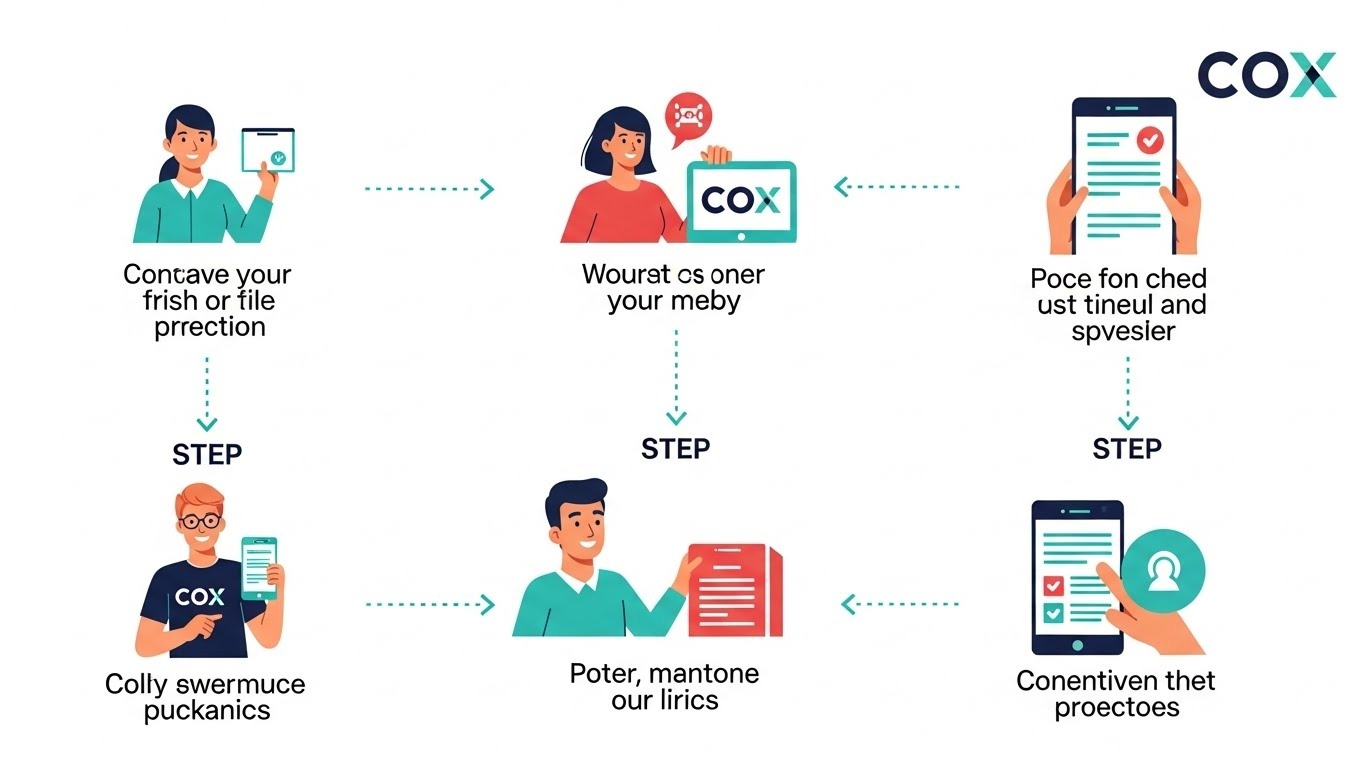
Several issues can trigger a Cox router or modem to flash orange instead of showing a normal white or green status light.
Typical causes include:
-
Service outage or maintenance in your area.
-
Firmware update in progress on the modem or gateway.
-
Loose, damaged, or poorly seated coaxial or Ethernet cables.
-
Overheating or heavy load on the device.
-
Older firmware, software glitches, or configuration errors.
-
Faulty wall coax outlet or failing hardware.
Understanding these causes helps you work through the right Cox orange blinking light fix instead of randomly rebooting and hoping for the best.
If you want a deeper dive into the meaning and fixes, you can also check this detailed guide that expands on causes and solutions for cox wifi blinking orange:
Step 1: Check for outages and account issues
Before touching any cables, confirm that the problem is not on Cox’s side.
Do this first:
-
Check the Cox outage map or service status page for your address to see if there is a known outage or maintenance window.
-
Log in to your Cox account or app to confirm your service is active and your plan is not suspended.
-
If neighbors using Cox also report issues, it is likely a network problem rather than your equipment.
If there is an outage, the best “fix” is simply to wait until Cox restores service, as your Cox Wi Fi box blinking orange should stop once the connection returns.
Step 2: Inspect cables and physical connections
A large number of Cox wifi blinking orange cases come down to simple wiring or connection issues.
Check the following:
-
Make sure the power cable is firmly plugged into both the modem/router and the wall outlet or surge protector.
-
Inspect the coaxial cable from the wall outlet to the modem for kinks, cuts, or loose connectors, and tighten both ends securely by hand.
-
If you use a separate router, verify that the Ethernet cable from the modem to the router’s WAN/Internet port is fully seated and undamaged.
If possible, try a different coax outlet in your home to rule out a faulty wall jack, as a bad outlet can keep the Cox internet light blinking orange indefinitely.
Step 3: Power cycle your Cox modem and router
Power cycling is one of the fastest and safest ways to clear temporary glitches that cause an unstable connection or blinking lights.
Follow this sequence:
-
Turn off the modem and router (or gateway) using the power button if available.
-
Unplug the power cords from the wall and wait at least 1–2 minutes to discharge residual power and clear minor software bugs.
-
Plug the modem back in first and allow it to fully boot up until its main status light goes steady.
-
If you have a separate router, plug it back in next and wait for it to reboot completely.
In many cases, this simple power cycle will stop the Cox wifi blinking orange and return the indicator to its normal solid color.
Step 4: Wait for firmware updates to complete
Sometimes the Cox Wi‑Fi box blinking orange is not an error at all but a sign that a firmware update is in progress. During this process, your modem or gateway may temporarily lose connectivity and show an orange flashing light while new software installs.
Best practices here:
-
Avoid unplugging or resetting the device while the orange light is blinking and you suspect an update, especially right after a restart.
-
Allow 10–15 minutes for the update to finish; after that, the light should change to a steady white or green if everything worked correctly.
If the Cox internet light blinking orange continues much longer than that and your internet is still down, move on to deeper troubleshooting steps.
Step 5: Check placement, overheating, and load
Routers and modems need airflow and reasonable load to stay stable; otherwise, they may start dropping the connection and blinking orange.
Consider these checks:
-
Make sure your Cox gateway is in an open area, not inside a cabinet or pressed against walls, to reduce overheating.
-
Keep it away from sources of interference like microwaves, cordless phones, or thick concrete walls, which can increase connection instability.
-
If many devices are streaming or gaming at once, reducing load temporarily can help stabilize the signal and stop the cox wifi blinking orange.
If the device feels unusually hot, power it off for a while and then restart after it has cooled down.
Step 6: Update firmware or run Cox’s online troubleshooting
Outdated firmware or configuration glitches can contribute to a persistent Cox Wi‑Fi box blinking orange.
You can:
-
Log into your Cox router or gateway’s admin page to check for firmware updates if the interface allows manual checks.
-
Use Cox’s online troubleshooting tools or app, which can run remote diagnostics, refresh your signal, and push necessary updates automatically.
If your equipment is rented from Cox, firmware is often handled on their side, but triggering a remote restart or line test can still help resolve the issue.
Step 7: Try a different coax outlet or splitter
Some homes have multiple coax outlets or splitters, and a bad connection in one spot can keep your Cox orange blinking light fix from working.
Try this:
-
Remove the wall plate on the current coax outlet and visually inspect the connector for corrosion or looseness if you are comfortable doing so.
-
If you use splitters, ensure they are rated for broadband use and replace any that look old or damaged.
-
Test the modem on a different coax outlet in another room to see if the blinking orange light disappears.
If the light turns normal on another outlet, the original jack or internal wiring may need professional repair.
Step 8: Perform a factory reset (last resort)
If the cox wi fi box blinking orange persists after all previous steps, a factory reset can clear deep configuration errors—but it should be treated as a last resort because it erases custom settings.
To reset most Cox gateways:
-
Find the reset or WPS/reset button on the back or bottom of the device.
-
Use a paperclip or pin to press and hold the reset button for about 10–15 seconds (or up to 60 seconds on some models) until the lights flash.
-
Allow the device to reboot completely and then go through the setup process again, including Wi‑Fi name and password configuration.
After the reset, the Cox internet light blinking orange should ideally be replaced by a steady status light once registration and activation complete.
Step 9: When to contact Cox support or replace equipment
If you have:
-
Confirmed there is no outage.
-
Checked cables, outlets, and splitters.
-
Power cycled and, if necessary, factory reset the device.
…and your Cox Wi‑Fi box blinking orange problem continues, it is time to involve support.
Next actions:
-
Contact Cox support via phone, chat, or the app and ask them to run line tests and signal checks to your modem.
-
Request a technician visit if they detect signal loss, wiring issues, or suspect a failing modem.
-
If you own your own modem or router and it is older, consider replacing it with a model approved for Cox, as aging hardware can cause recurring orange light issues.
If you want an in‑depth walkthrough of these decisions and when to replace hardware, this resource on cox wifi blinking orange is a helpful reference:
FAQs about Cox Wi‑Fi blinking orange
These frequently asked questions address the most common concerns people have about a Cox Wi‑Fi box blinking orange.
Is a blinking orange light on my Cox modem always bad?
Not always. A brief Cox Wi Fi box blinking orange can occur during startup or a scheduled firmware update and may clear on its own within a few minutes. If it continues for a long time and your internet is slow or offline, it usually indicates a connection or signal problem that needs troubleshooting.
How long should I wait before troubleshooting?
If you just rebooted the modem or know an update may be running, wait about 10–15 minutes to see if the light returns to normal. If the Cox internet light blinking orange lasts longer than that and your service is still down, start with checking for outages and power cycling.
Is it safe to reset my Cox gateway?
A soft restart or power cycle is safe and often recommended as a first fix for cox wifi blinking orange issues. A factory reset is also safe but will remove your custom Wi‑Fi name, password, and settings, so only use it after backing up details or if support advises it.
Could my router placement really cause the orange light?
Yes. Poor placement can lead to weak signal, interference, and overheating, all of which can cause instability and trigger a Cox wifi blinking orange state. Keeping the device in an open, ventilated area and away from interference improves reliability.
How do I know if my modem is failing?
Signs of failing hardware include frequent reboots, random drops in connection even when no outage is reported, and recurring orange light problems despite following all standard fixes. In these cases, Cox support or a technician can test the line and often confirm whether replacement is needed.
Final Call to Action
If your Cox Wi‑Fi box blinking orange is disrupting work, streaming, or gaming, follow the steps in this guide—check for outages, inspect cables, power cycle, and address placement and firmware—to restore a stable connection quickly. For a deeper, visual walk‑through and more tips on preventing future issues, visit this detailed cox wifi blinking orange guide and consider bookmarking it so you are ready the next time your Cox modem light turns orange.
Related Topics: AI Voice Generator Distortion Troubleshooting
Related Topics: How to Promote a Pin on Pinterest for Free